
### __Chapter 11 - Inpainting is Important__
No bad puns, no bad jokes. Inpainting is what can turn any pic into something nice. And no, I am not talking about img2img. Or just img2img. Inpainting is using img2img on a specific part of the picture. Let me give you first example:
I wanted to make a picture of Zelda hunting in the rain. I want it to be full body and 16:9. This is not a great combo. Humans are tall bastards and choosing a horizontal resolution is not optimal to display them fully. So either the body will have to be cut off (a "cowboy shot" for example) or she will have to be further away. Which means less detail:
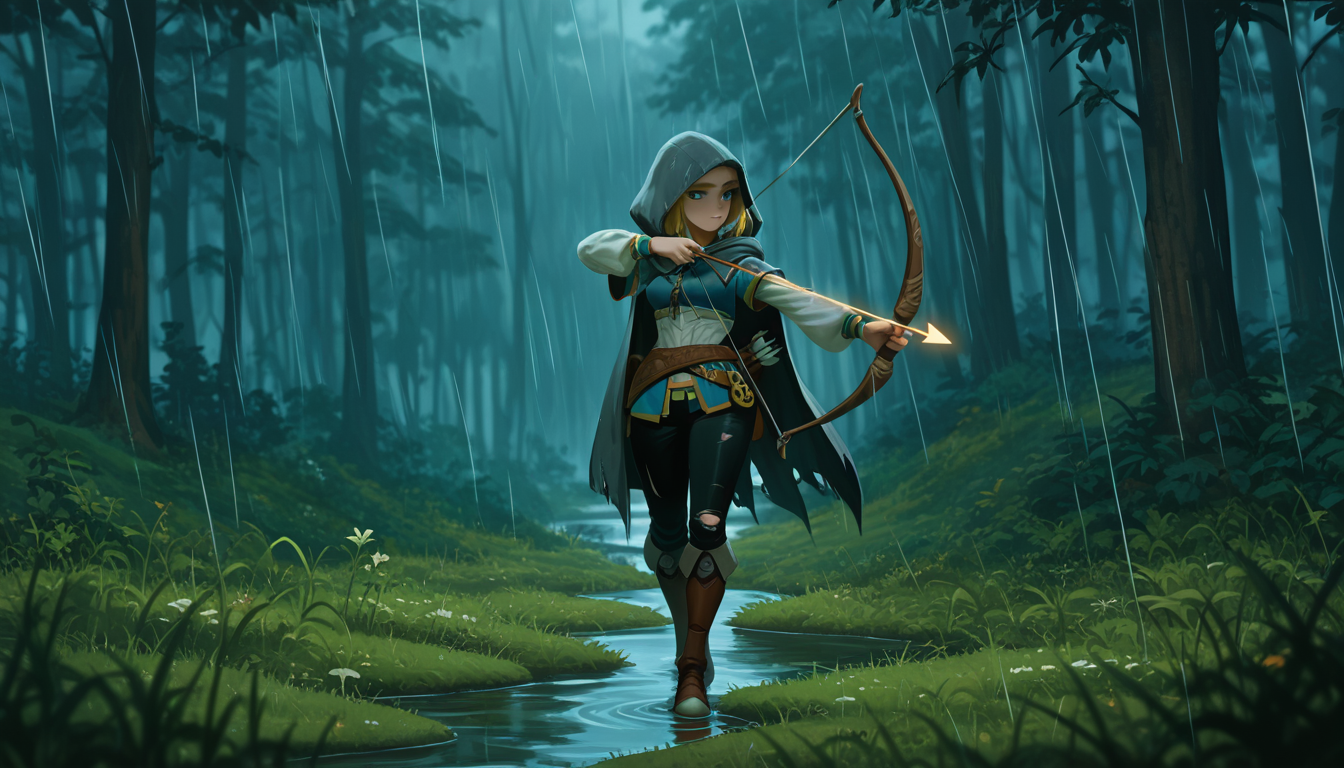
Okay, we got a nice, raw template to work with. Think of this as your sketch. This is where the work begins. I use Invoke, as I stated before. So I can only show the process with this program. Just make sure the software you choose supports masking and inpainting. My base in this case is 1344x768. I inpaint parts of the picture with 512x512 to maximal 896x896. The smaller the inpainting area, the more details are added. That means, the further away something is, the bigger the area should be. (To create a natural sense of depth.)
So I put the picture in the in build editor in Invoke, choose my 512x512 area to impaint and mask out what I want to inpaint:
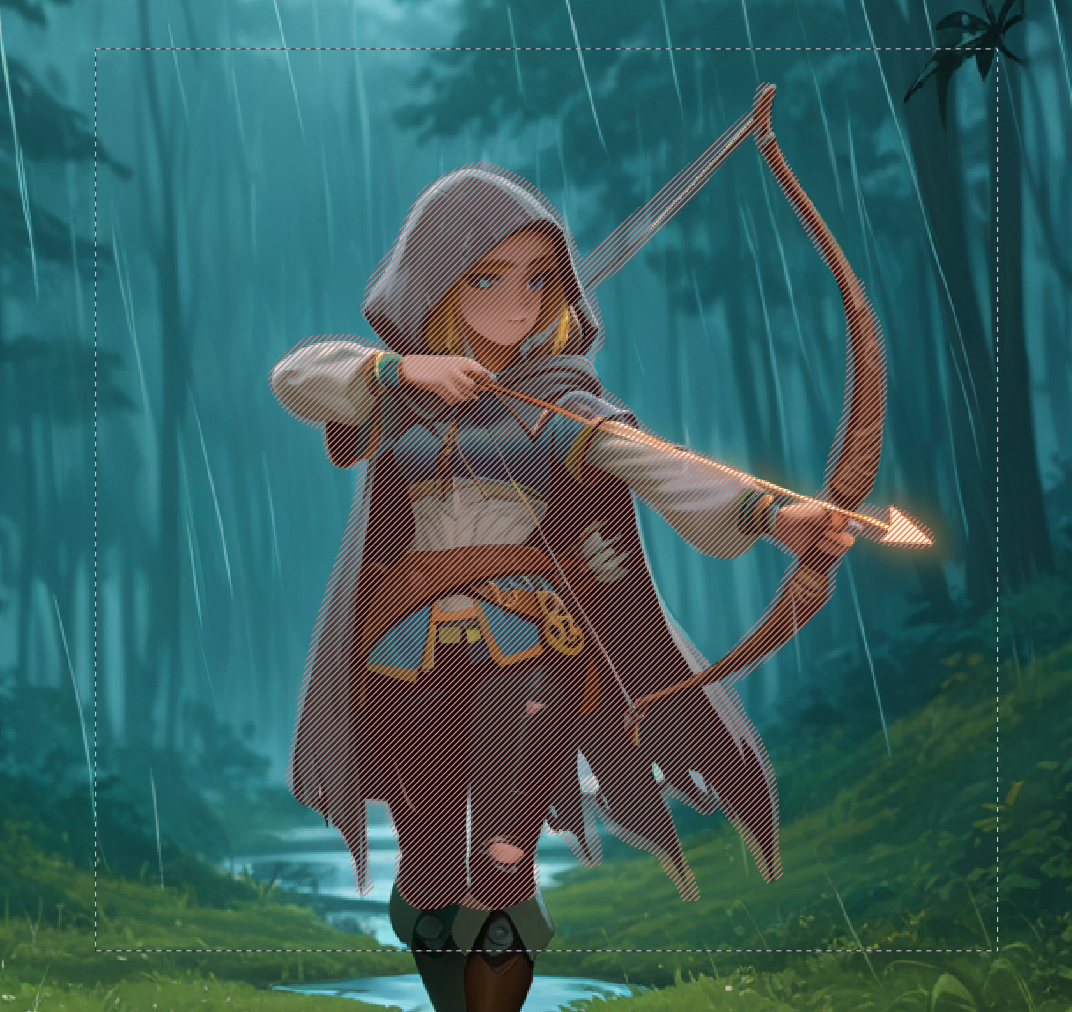
Since I want to keep as much of her as is, I only denoise around 0.2 to at best 0.45. Any higher, and the AI add or removes stuff for sure. Any lower, and it will not be able to add detail. That said, if you want to edit very small details in the background, you can do in smaller squared and choosing a low denoise. Anyway, lets take a look at the before and after:
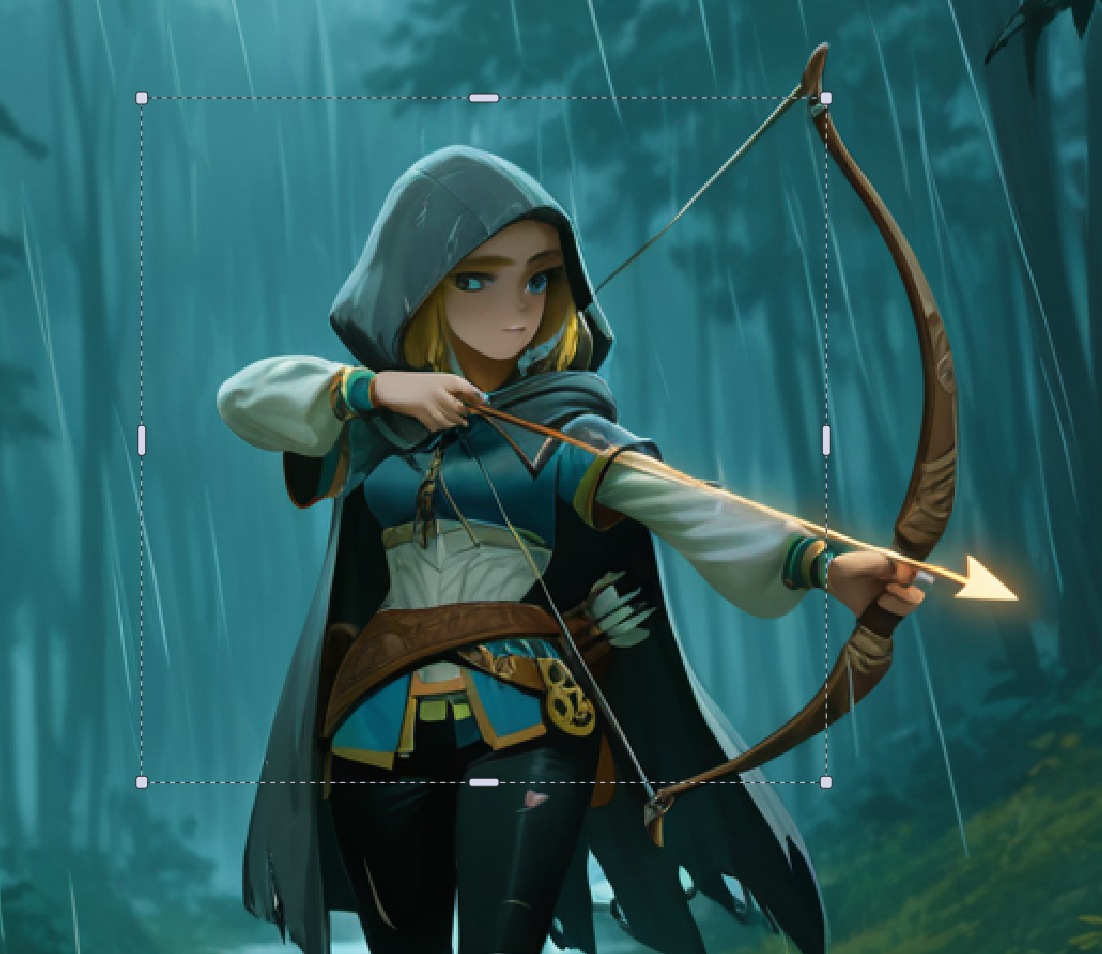 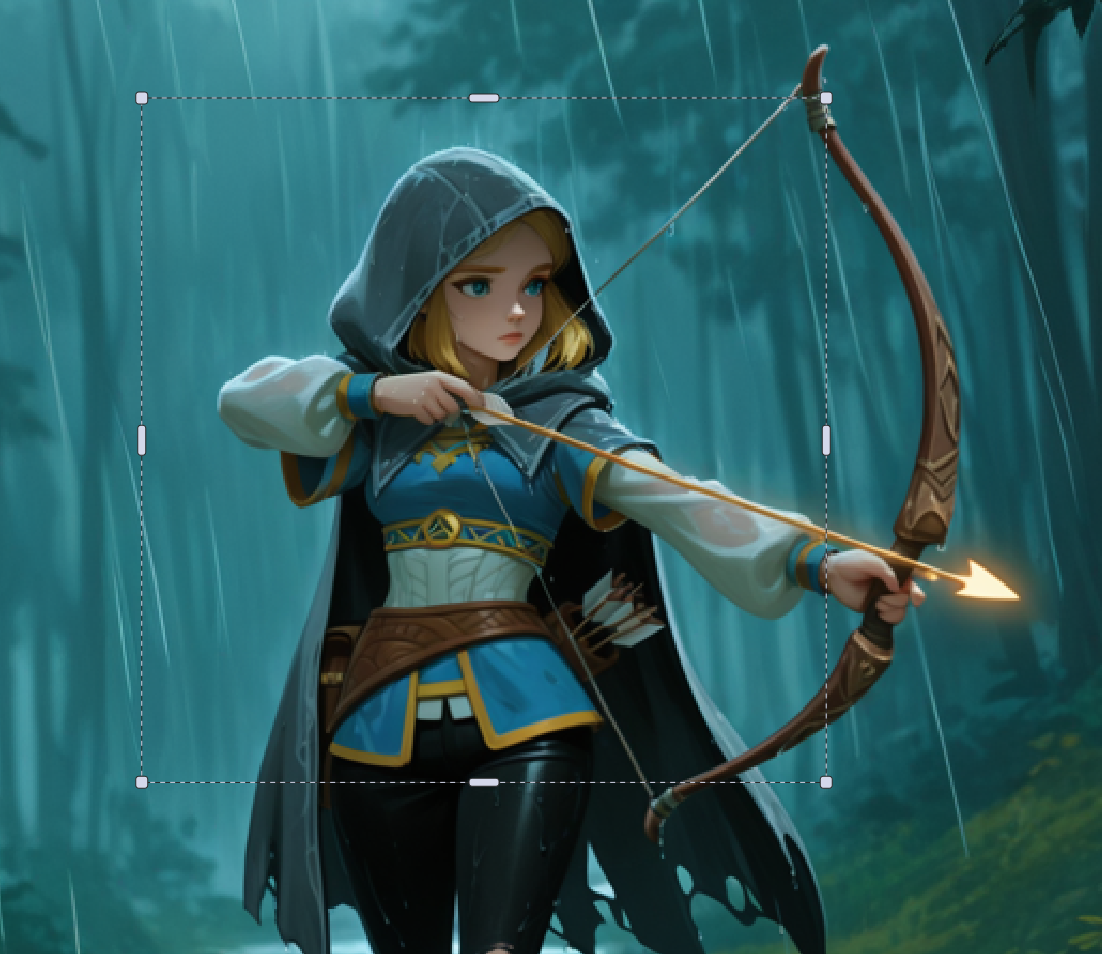
What has happened here is simple. Invoke takes the area and enhances/stretches it to 1024x1024. Then it img2img the whole area with your prompt, then it scales it back down to 512x512 and pastes it fitting to the mask. This way the added details stay visible.
Now, not every character will fit in a 512x512 square. Zelda here didn't. And that's is the neat part, they don't need to. I chose a natural line from her body, the biegginning of her boots, as a border for the inpainting. I would then adjust the area and inpaint only her boots. The AI will blend them together and the natural break helps along. So in the end it will look more seamless. With ponies, I often divide the body from head to shoulder, shoulder to flanks, and then hind legs and rump.
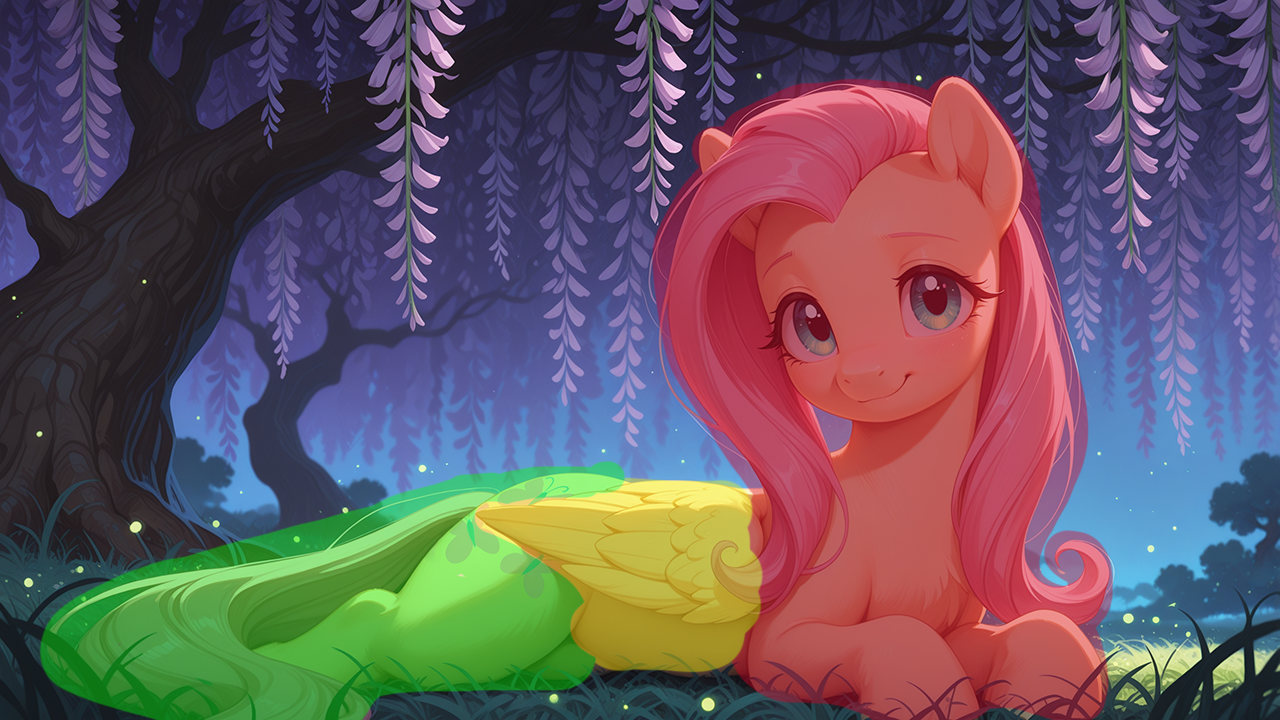
~*Note: I choose to do this example on a human character because clothes, skin and all have in general more detail and get the point across better.*~
And this is the whole spiel, really. You inpaint, maybe draw in a little detail yourself and do so often until the picture is to your liking. Let me add another example for backgrounds. Because they can be a total mess:
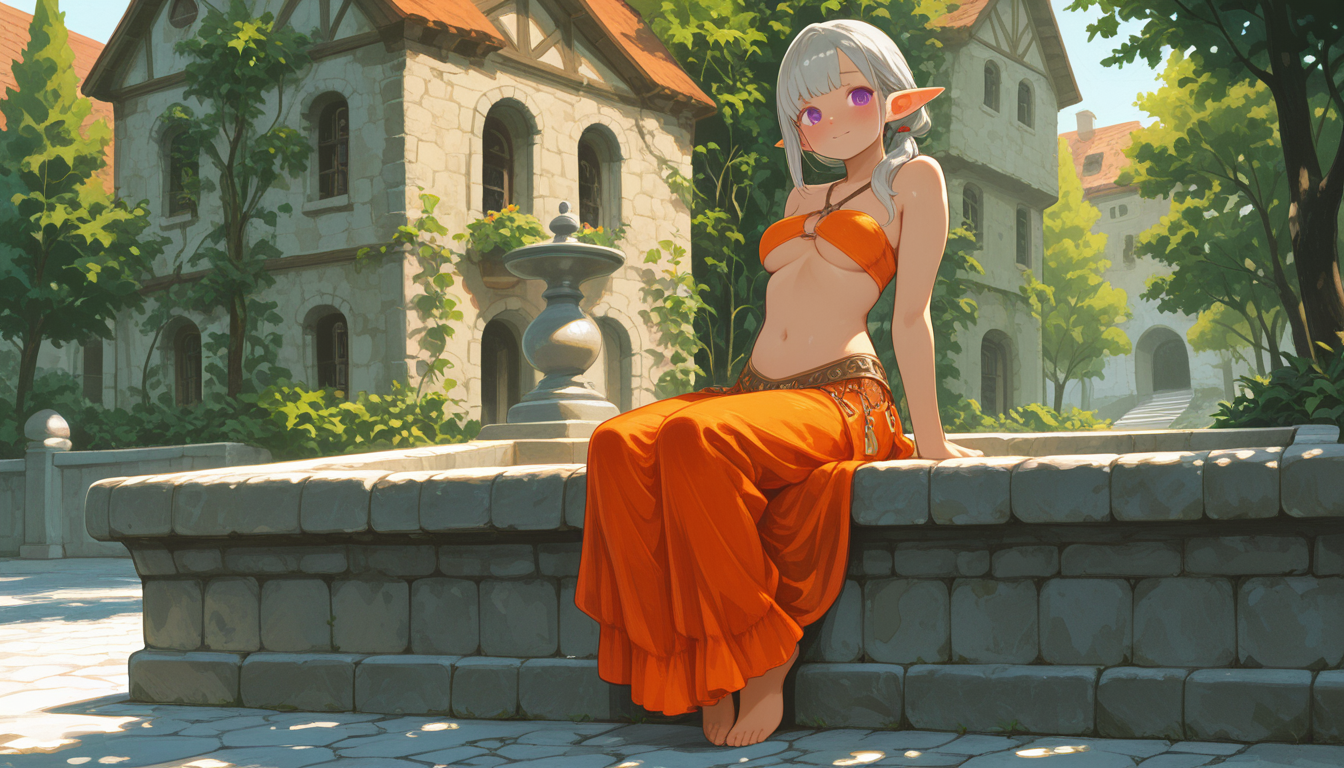
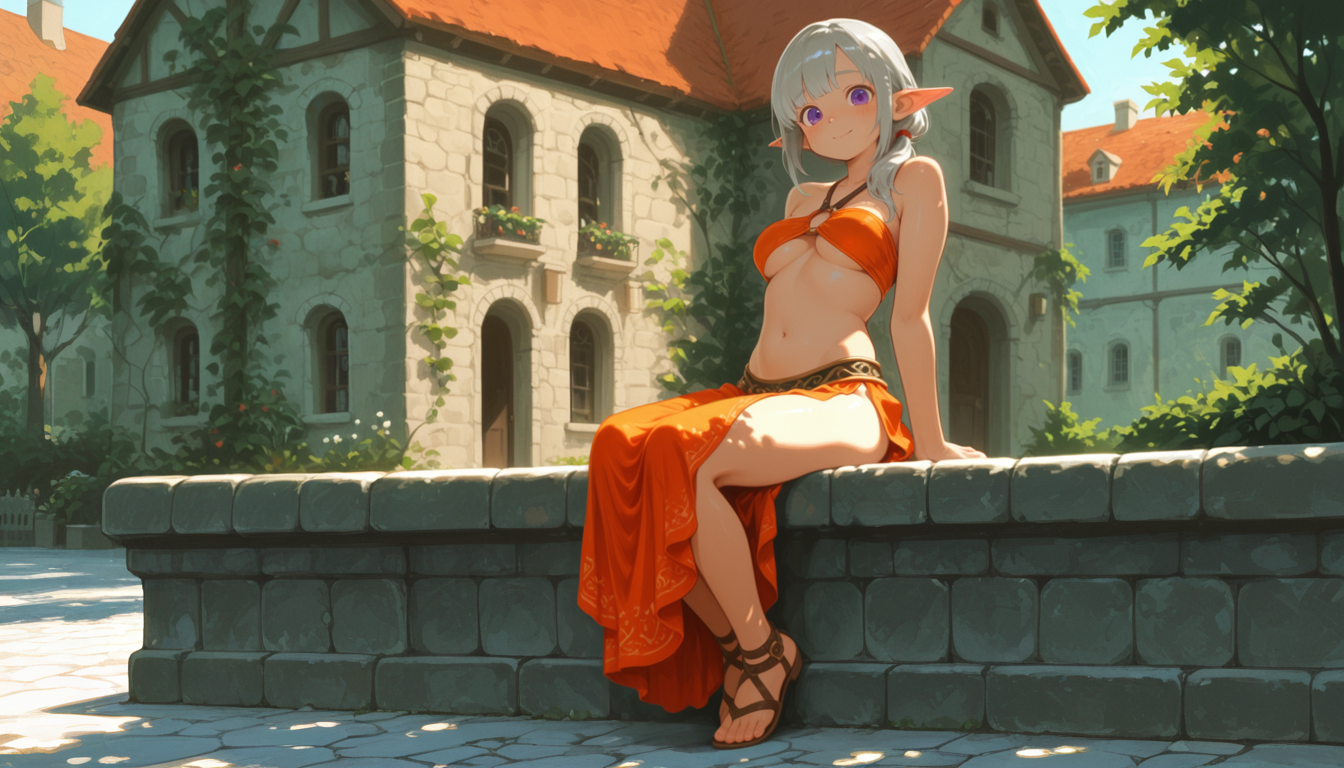
It's a random character from my pen&paper group, so don't bother too much with that. What counts is the houses and city in the background. I did take big, fat, brush and made rough changes how I want it before inpainting the while thing, masking area by area and using natural visual borders to make it look more seamless.
This can be a time consuming process but if you are willing to put in the effort you can make really great pictures.
---
To Be Continued...
No bad puns, no bad jokes. Inpainting is what can turn any pic into something nice. And no, I am not talking about img2img. Or just img2img. Inpainting is using img2img on a specific part of the picture. Let me give you first example:
I wanted to make a picture of Zelda hunting in the rain. I want it to be full body and 16:9. This is not a great combo. Humans are tall bastards and choosing a horizontal resolution is not optimal to display them fully. So either the body will have to be cut off (a "cowboy shot" for example) or she will have to be further away. Which means less detail:

Okay, we got a nice, raw template to work with. Think of this as your sketch. This is where the work begins. I use Invoke, as I stated before. So I can only show the process with this program. Just make sure the software you choose supports masking and inpainting. My base in this case is 1344x768. I inpaint parts of the picture with 512x512 to maximal 896x896. The smaller the inpainting area, the more details are added. That means, the further away something is, the bigger the area should be. (To create a natural sense of depth.)
So I put the picture in the in build editor in Invoke, choose my 512x512 area to impaint and mask out what I want to inpaint:

Since I want to keep as much of her as is, I only denoise around 0.2 to at best 0.45. Any higher, and the AI add or removes stuff for sure. Any lower, and it will not be able to add detail. That said, if you want to edit very small details in the background, you can do in smaller squared and choosing a low denoise. Anyway, lets take a look at the before and after:
 
What has happened here is simple. Invoke takes the area and enhances/stretches it to 1024x1024. Then it img2img the whole area with your prompt, then it scales it back down to 512x512 and pastes it fitting to the mask. This way the added details stay visible.
Now, not every character will fit in a 512x512 square. Zelda here didn't. And that's is the neat part, they don't need to. I chose a natural line from her body, the b

~*Note: I choose to do this example on a human character because clothes, skin and all have in general more detail and get the point across better.*~
And this is the whole spiel, really. You inpaint, maybe draw in a little detail yourself and do so often until the picture is to your liking. Let me add another example for backgrounds. Because they can be a total mess:


It's a random character from my pen&paper group, so don't bother too much with that. What counts is the houses and city in the background. I did take big, fat, brush and made rough changes how I want it before inpainting the while thing, masking area by area and using natural visual borders to make it look more seamless.
This can be a time consuming process but if you are willing to put in the effort you can make really great pictures.
---
To Be Continued...